The way of the Jedi
A few months ago I started making AI videos. I didn’t plan that. I had never seen myself as an AI video creator. I just wanted to try to create some video materials for my text game. And oh boy… I got lost in this.
I never planned to make music videos either. And yet, here I am:
And you know what? So many people are doing this wrong. The AI video world is the wild west - no standards, no best practices, no rules. And a lot of people constantly trying to sell you their tools. Or the idea that you need some tool. You don’t. Really.
My path is different. Like a Jedi who had to build their own lightsaber, a true video creator should build their own tools. Unique and personal, with a sparkle of your taste. Only then will you be free to create whatever you want. I started with some promo videos, then jumped into funny shorts, then into my own anime, then into music videos. Who knows what I’ll be doing tomorrow? I don’t believe in other people’s tools.
I’ll show you how to build your own AI video tool, pipeline, workflow, engine, harness - whatever the name is.
This article is a text version of this video:
The tool
I’m an AI minimalist - I believe in a simple setup and simple words. I’m using Claude Code with a bunch of skills - that’s it. And it can actually be any up-to-date coding assistant (a harness) with any frontier model. Claude Code with Opus 5.5 is a great choice if you are ready to pay $100/month + the cost of generated assets, but you can lower the budget and be all right.
Here’s what I would pick for different price ranges, per month:
- $100: Claude Code or Codex
- $20: Google AI Pro
- Chinese coding plans: Kimi $20/$40, GLM $20/$80, MiniMax $11/$30
Pick one in your price range and get used to it. Everything below works the same in Codex or any other harness.
Skills support is the only requirement. Skills are our plugins, addons, extensions - all the new functionality and experience we are going to add to the base harness. What functionality do we need? Two things really:
- Ability to generate assets (images, animations, sounds, voices);
- And ability to edit a video.
Why skills
They are just text files. They work as lazily loaded prompts. Each skill has a short description and a body - only the descriptions are loaded into the context. The model decides from these descriptions when to load the rest of a skill. You can have a lot of them and nothing is loaded into the context unless it is needed. That’s why I like them more than MCP servers - those put a lot more into the context.
Imagine that you want to teach your brand new Claude Code to generate images using OpenAI API. You explain where to get the API key, you pass the image gen documentation, you let it make some calls and build a few reusable scripts… You let it find the successful path, then ask it to create a skill with it. This skill will contain the successful path, the exact steps and scripts location, usage examples, all the useful settings, and the description when to use this skill.
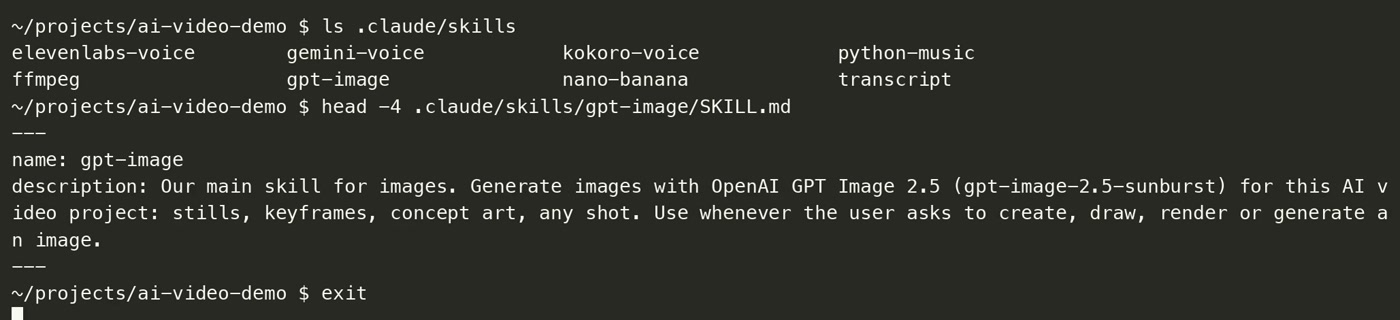
And you don’t write skills yourself. You only say “remember the successful path, create a skill for this”. Next time it doesn’t search - it loads the skill and does everything from the first attempt. I wrote more about how my skills grew in How to start creating AI videos from scratch. Here we just build them, one by one. We need four groups:
- images,
- voices,
- music (oh, this one is magical),
- editing (you would be expelled from Hogwarts for this one).
From complete scratch
Here is what we start with:
- an empty folder
- a fresh Claude Code session that knows nothing about you
- three API keys
And here is what we end with:
- 8 skills the harness wrote for itself
- a 101-second narrated story with 10 illustrations, music and camera moves
- a costs.csv that says we spent $0.62
It took about an hour of work. No libraries to install by hand, no platforms, no video editor.
What we build
We build a slideshow. A short story, a voice reading it, and images that change as the story goes.
I know what you’re thinking.
A slideshow??? This is ridiculous, so much time has been wasted reading this! I’m leaving!
Yes, a slideshow. This is how you start. A video is a bunch of animated slides (surprise). First you learn to make the slides, set up your harness to do it fast and easy - only then do you think of animating them. Animation is stage two - a place you need to get to.
Images
You need to pick an image model. One model is how you keep the style consistent. Although, sometimes I generate an image with one model and then fix some details with another one. Which means having more than one is a good idea.
I think the best one right now is OpenAI GPT Image 2.5 (gpt-image-2.5-sunburst). In our demo one image cost $0.04 at 1536x1024. A 4K image costs about $0.12.
I like using it through the official OpenAI API. This gives me the latest version, all the features like editing, good docs with examples and best practices I can pass to the AI. This might not be the cheapest option, but we are going to pay less than $1 for 10 images.
To teach our harness to use GPT Image 2.5 we do the following:
- Go to the OpenAI API platform, create a profile, create an API key.
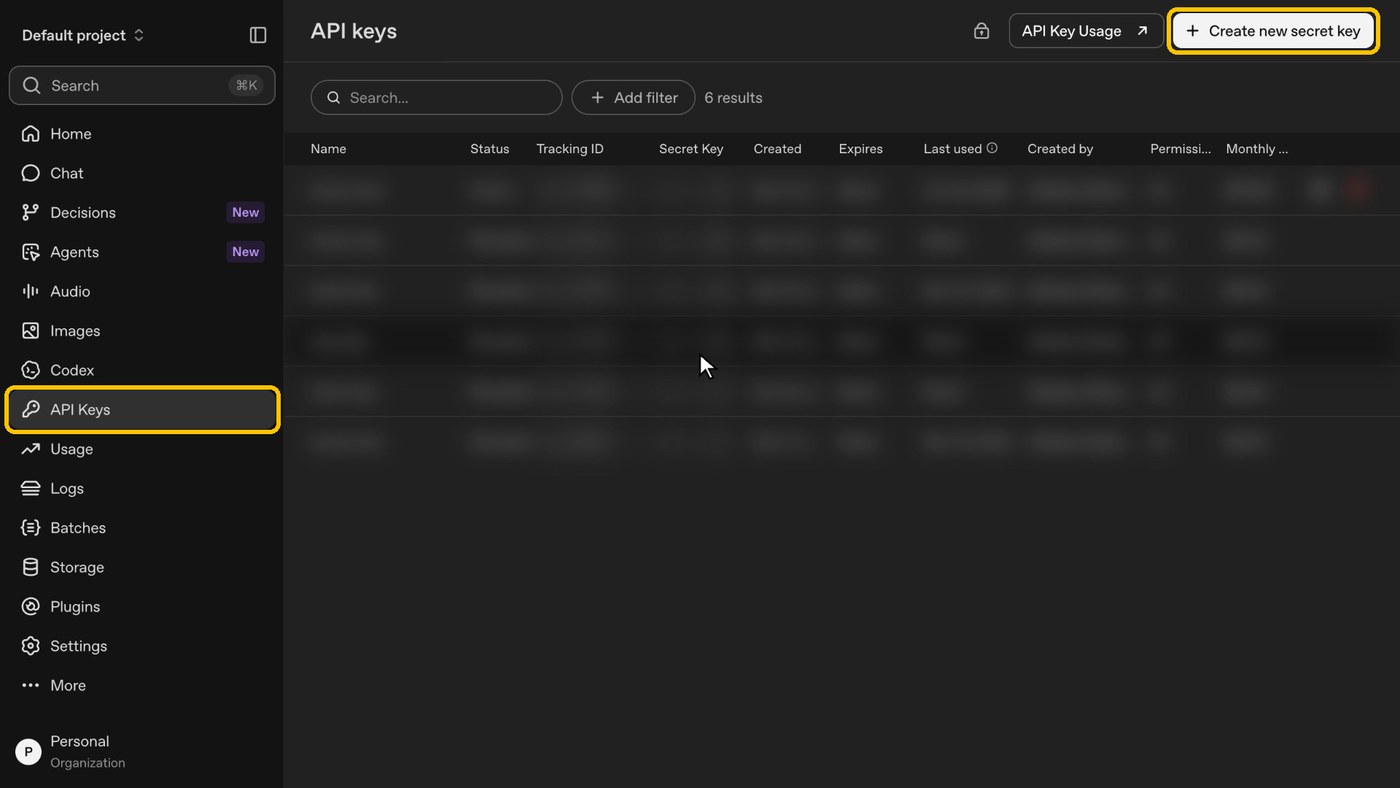
Store it somewhere. Ask your AI how to do it properly. For example, I keep my keys in the macOS Keychain. Claude Code wrote a script that gets the key and makes the API call - it never sees the key itself.
- Then open the docs page for image generation. Most docs sites now have the “Copy page” button that copies the whole page as markdown.
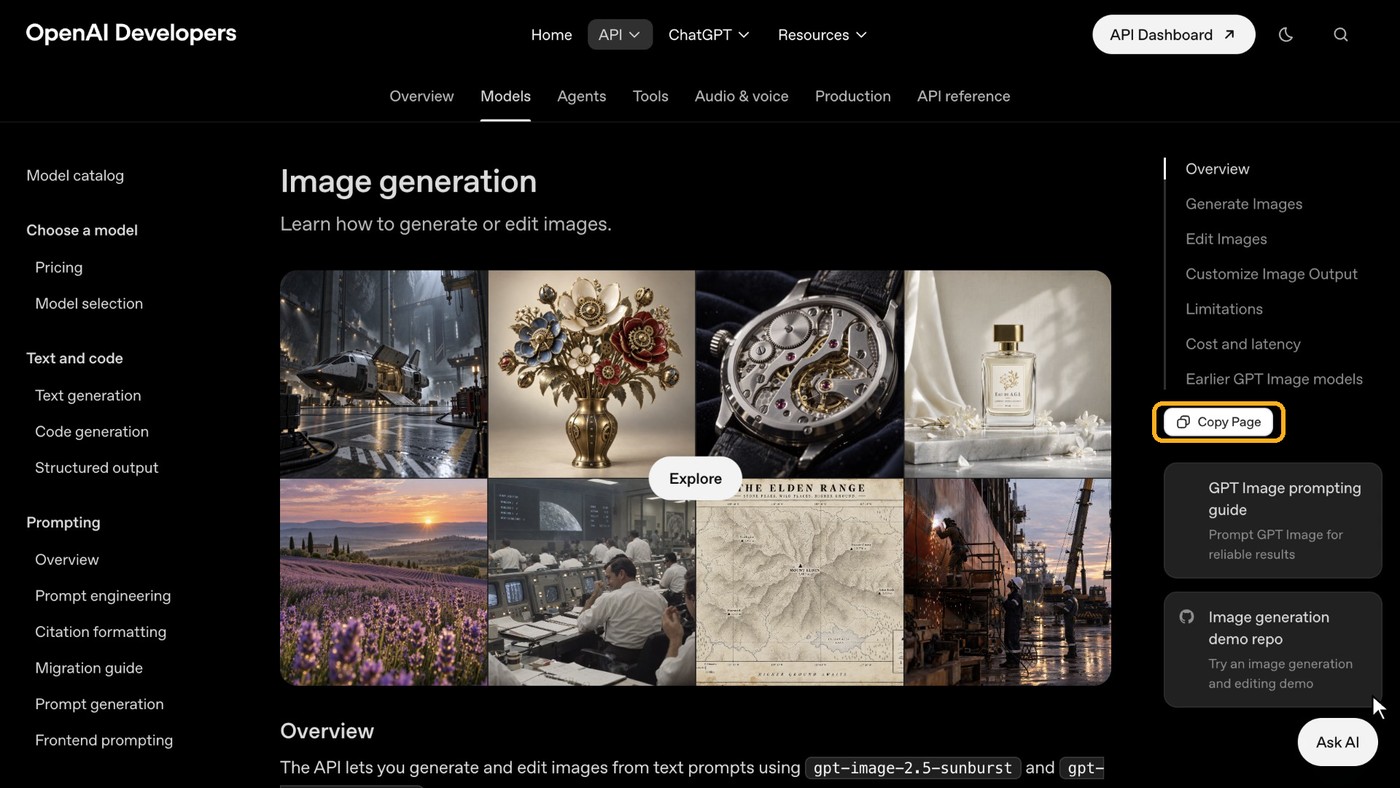
Copy it, paste it into the harness, and ask:
Hi! I want to make AI videos in this folder, starting from zero. Step one: teach yourself to generate images with OpenAI GPT Image 2.5 (gpt-image-2.5-sunburst). My API key is in macOS Keychain, account ai-video-demo, service vid-oai. Never print it. Here is the documentation: [docs] Make one test image: a lonely research station on a frozen moon, Saturn huge in the sky, cinematic, 1536x1024.
That’s the magic of modern harnesses. It reads the doc, writes a small script, runs it, fixes its own errors, and gives you an image. Ours took 32 seconds and $0.04.

Then:
Nice. Now create a skill for this, so you remember the successful path next time. Name it gpt-image, and describe it as our main skill for images.
It’s good to have more than one model. My second favorite is Nano Banana 2.1. The docs are here:
Great. Let’s add a second image model as an alternative: Nano Banana 2.1 (Gemini image, gemini-nano-banana-2.1). Gemini key is in Keychain, account ai-video-demo, service vid-gem. Docs: [docs] Generate the same frozen moon scene with it so we can compare the two models side by side. Then make a skill for it called nano-banana.
Same frame, $0.10.
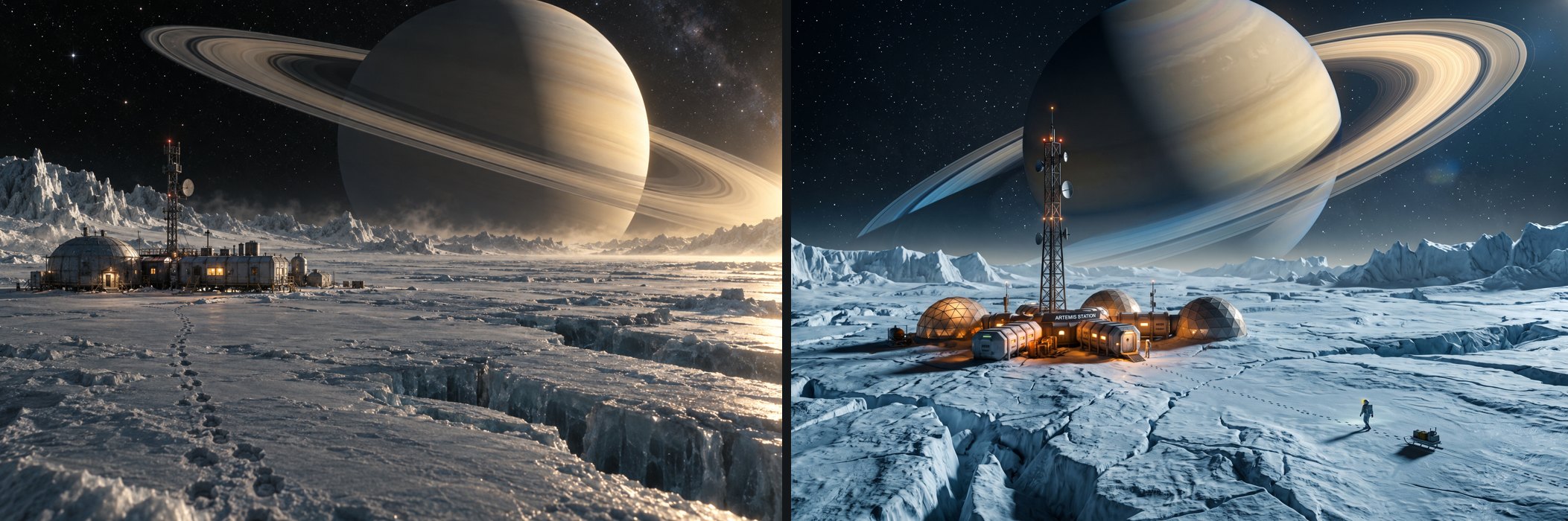
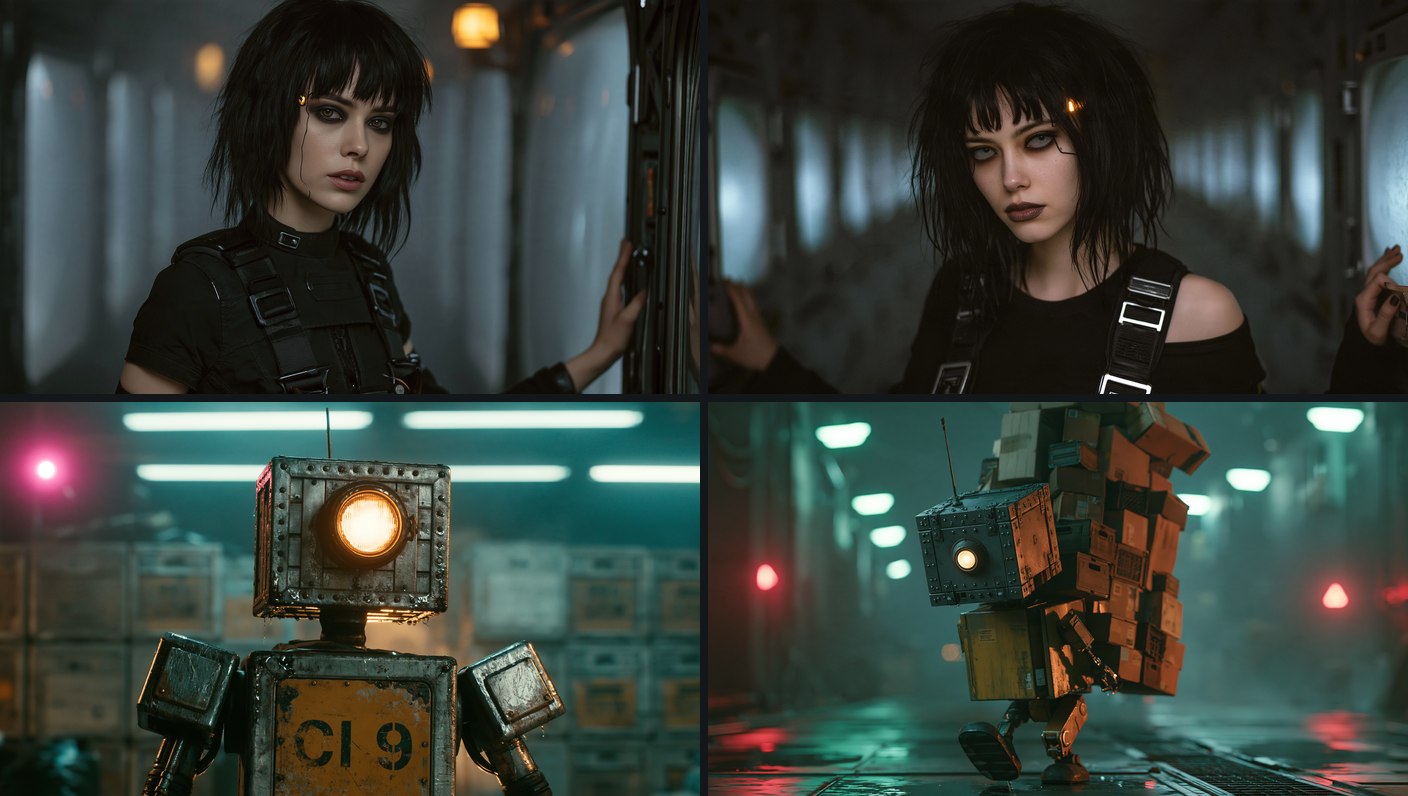
We won’t be using Midjourney here, although most AI content creators prefer this model over anything else. It gives better realism and really unique visuals. But it doesn’t have an official API and it’s harder to get great results out of the box. Feel free to explore this model yourself. I use it via the EvoLink platform: Midjourney 8.2 page.
House rules
Before going further, I set some rules for the project. They go into CLAUDE.md, a file the harness reads at the start of every session:
Before we go further, let’s set some house rules for this project and write them into CLAUDE.md. 1) Cost tracking: every paid API call gets a row in costs.csv (date, service, model, what, cost in USD). Don’t trust your memory for prices, use these official pricing pages. Gemini: [pricing page] OpenAI: [pricing page] Add rows for the two images we already made. 2) Work log: after every step that creates a file, append a short entry to WORKLOG.md: what, which tool and model, the full prompt, the output file, the cost. 3) Project structure: every video gets its own folder, projects/NAME/, with images/, voices/, music/, cuts/ and final/ inside. Move the two test images to projects/tests/images/.
Cost tracking is everything. Did I mention that real animation is very expensive? I spend around $100 on my 4 min music videos. People keep telling me that it can be cheaper, but it’s usually theory. I haven’t heard it from people who actually make videos. In any case, if you track costs you are in control. If it’s getting too expensive, you switch to cheaper models and change the technique.
And this is why it’s important to master slideshows - sometimes you can get away with a still image even in a high quality cinematic video. It can save you tons of money.
Voice
There is ElevenLabs, and it’s the best voice platform. Great voices, lots of settings. It’s also the most expensive and a bit hard to use. I’d start with Gemini voice models instead. They’re very cheap, and you can describe in words what voice you want. Or you can just ramble your preferences to Claude Code, and it turns them into the Gemini voice instruction for you.
Images done. Now voices. Teach yourself Gemini text-to-speech (gemini-3.8-flash-tts), same Gemini key. Docs: [docs] Test line: “The station had been silent for three hundred days. Then, at midnight, the radio woke up.” Calm, low female narrator, a little mysterious. Save it in projects/tests/voices/. When it works, create a skill called gemini-voice.
It picks the voice by its description. The one it chose is described as “deep, velvety, and unhurried”.
A bonus model: Kokoro. It runs fully on your computer, on the CPU, for free.
Good. Now a free one: can we have the Kokoro voice model (Kokoro-82M) running locally on my CPU? Download it, write a script, read the same line with a female voice, and make a skill called kokoro-voice. This Mac has 16 GB of RAM, so keep it light.
It downloads the model, writes a script to run it, and makes a skill. Simona, my AI assistant, uses Kokoro to read her replies to me out loud every day. We created a Claude Code hook for this - but it’s a separate topic.
Kokoro is not very configurable, but it’s free and lightweight, so add it. Use it for drafts or long texts - it can read books or articles to you.
And the premium one:
Last voice, the premium one: ElevenLabs. Key is in Keychain, account ai-video-demo, service vid-el. Docs: [docs] Read the same line once with a calm female narrator voice, model eleven_multilingual_v2. Make a skill called elevenlabs-voice. Then put the best Gemini take, the Kokoro take and this one side by side in projects/tests/voices/ so I can compare them.
The same line, three engines:
| Engine | Cost of the line | What you control |
|---|---|---|
| Kokoro (local) | $0 | speed only |
| Gemini TTS | $0.0025 | a style prompt in plain words |
| ElevenLabs | $0.0071 | voice settings, a huge voice library, cloning |
You can hear all three in the video at 10:30.
Music
There are music services. Suno is the most famous one. For this video we use something simpler, free, and very magical: Python.
You don’t code anything. You just ask:
Voices done. Now music, completely free: using Python, can you generate some electronic music for a video? A calm, slightly eerie ambient track, about 60 seconds, for a sci-fi story about a lonely station on a frozen moon. No samples, just code. Save it to projects/tests/music/ and make a skill called python-music.
You won’t get rock music or vocals. But you get decent electronic background music for a simple video. It can’t listen to its own track, so it checked it by looking at the spectrogram.
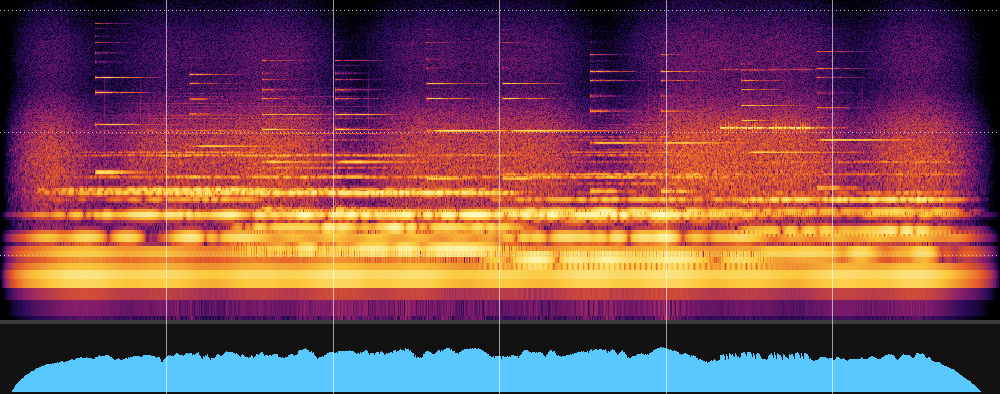
You can hear the track in the video at 11:14.
It’s hard to give feedback on this kind of music. My AI and I don’t have shared words for drones, ambient pads and noises yet. But it’s interesting - over time we can build those words and understand each other better. Make this higher, reduce the humming, let’s add some random notes…
That’s the only music skill I have. When I need more, I go to Suno by hand. It has no API.
Editing
Two more skills. The main one is FFmpeg. It’s a terminal tool with no UI, and AI is very good with it. It can make a video from images, cut a video into pieces, swap them, pull out frames, add sound, change volume. A full video editor in the terminal. The model already knows it, and the tool has its own docs built in.
Now the first real video, from one prompt:
Now our first real video. Write a short story about space, 8 to 10 sentences, about that lonely station on the frozen moon whose radio wakes up. Split it into parts and make 6 illustrations for it with gpt-image, 16:9, same style in every frame. Voice the story with Gemini. Make a music track for it with python-music and keep it quiet under the voice. Then use FFmpeg to put it all together into a 1920x1080 slideshow video where the images follow the story. New project folder for it. When it works, create an ffmpeg skill with the successful path.
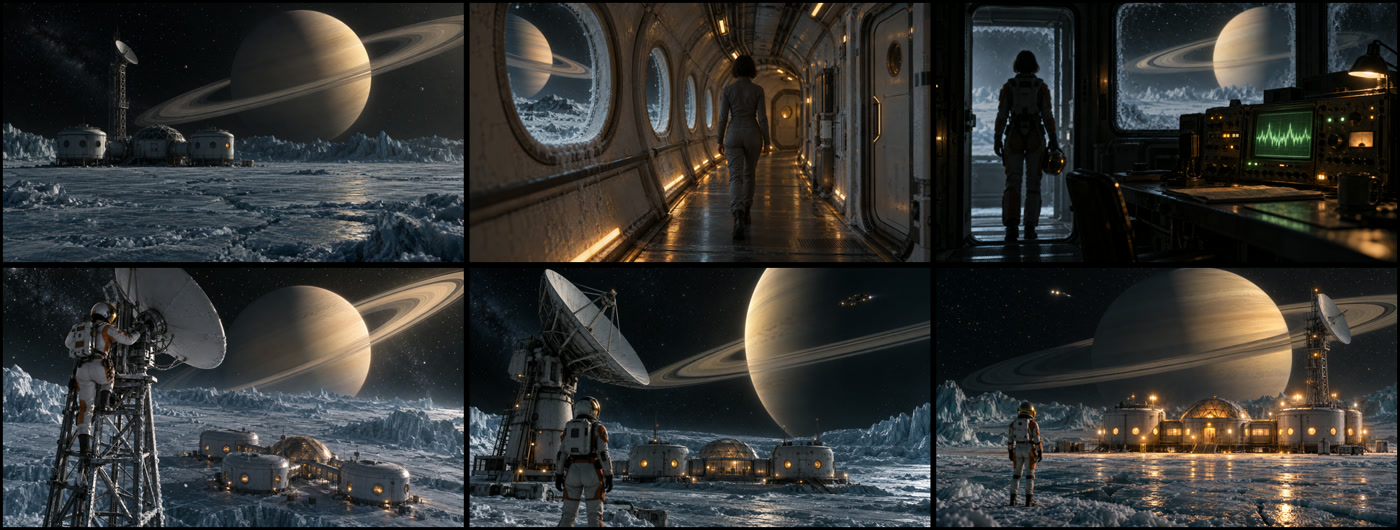
It worked. But each image stayed on screen for 17 seconds, which is way too long.
To switch images at the right moment, you need timings: when exactly each word is spoken. There is a small local model for that, faster-whisper. You don’t need to know its name. Just tell the harness you need the exact timing of each word.
It works, nice! Two things to improve. First, each image stays on screen for 17 seconds, that’s too long. Let’s do one image per sentence (keep the 6 we have, add the missing ones in the same style). To switch images at exactly the right moment, we need word timings: set up a small local transcription model (faster-whisper) that tells us when each word is spoken, and make a skill for it called transcript. Second, what other effects can FFmpeg do on still images besides zoom? Use a few of them in v2 where they fit the story, for example a slow pan across a wide image, a little camera shake when the radio wakes up, a light pulse when the station lights come on. Render it as v2, keep v1.
About the effects. Once the slides are together, you’ll see they move a little: a slow zoom in or out. Ask what else FFmpeg can do. It can zoom in any direction. It can scroll across a wide image through a narrow window. It can shake the frame. It can play with brightness, like a light pulse. This matters later: you don’t always need expensive animation. Often a still image with a good effect is enough.
There is one unwanted effect: the shaking. Zooming recalculates the frame size over time, and rounding to whole pixels creates tiny mistakes. This creates jitter, and a model cannot see it. I can, so I asked it to get rid of the jitter and remember the fix in the skill. Although sometimes shaking might be useful.
The result
The story starts at 14:21 in the video.
The station had been silent for three hundred days. It sat alone on the frozen plains of a nameless moon, where Saturn filled half the sky. […] Then she leaned toward the microphone and said, “This is Kepler Station. We are still here.”
And if you don’t like some part of it, just ask. The harness has all the source files and all the timings. Change one line, render again.
The last prompt is a quick tour of what we built:
Looks great. Last thing for today, a quick tour so I can see what we built: list our skills with their one-line descriptions, show me how much we spent in total from costs.csv, the last few entries of WORKLOG.md, and the folder structure of the project. Just show them, no changes.
Here is the full bill:
| What | Calls | Cost |
|---|---|---|
| Images, GPT Image 2.5 | 12 | $0.489 |
| Images, Nano Banana 2.1 | 1 | $0.102 |
| Voice, Gemini TTS | 8 | $0.026 |
| Voice, ElevenLabs | 1 | $0.007 |
| Voice Kokoro, music, FFmpeg, faster-whisper | - | $0 |
| Total | $0.624 |
The docs I pasted
Where a prompt says [docs], I pasted the whole page with “Copy page”:
- OpenAI images: https://developers.openai.com/api/docs/guides/image-generation
- Gemini images: https://ai.google.dev/gemini-api/docs/image-generation
- Gemini TTS: https://ai.google.dev/gemini-api/docs/speech-generation
- ElevenLabs: https://elevenlabs.io/docs/api-reference/text-to-speech/convert
- Prices: https://ai.google.dev/gemini-api/docs/pricing and https://developers.openai.com/api/docs/pricing
What’s next
This is more than enough to start. It’s how I started. My very first video, Sleeper AI episode 1, is still one of my favorites. Half of it is static images and HTML. You can do a lot with static images.
In the next episode we animate some of these slides. Or build an episode of my shorts series together.
If you get stuck, or want to show what you made, come to our Discord: https://discord.gg/PVY9dpU8X5